7 Tips for More Accurate Business Card Scans
Lighting, angle, card design and a quick review — small habits that make AI-powered card scanning noticeably more accurate.
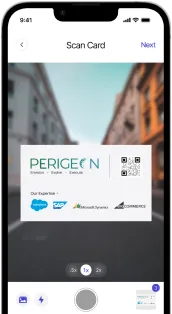
PeriScan’s AI-powered OCR reads a wide range of card layouts, but the quality of the photo still matters. These seven habits help every scan come out right first time.
1. Use even, natural light
Bright, diffused light works best. Avoid a single overhead bulb that throws a shadow of your phone across the card.
2. Watch for glare
Glossy and metallic cards reflect light. Tilt the card slightly until the reflection disappears from the text.
3. Keep the phone parallel
Hold the phone directly above the card rather than at an angle. Straight-on captures keep letters undistorted.
4. Fill the frame
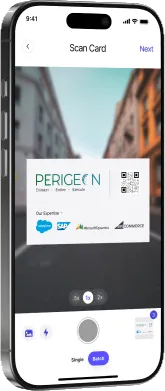
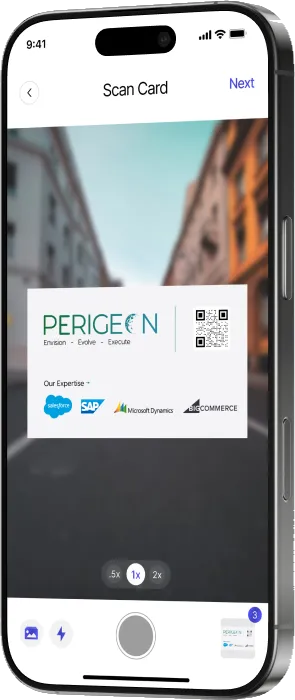
Get close enough that the card fills most of the viewfinder, while keeping all four edges visible.
5. Use a contrasting background
A light card on a dark surface (or the reverse) helps the scanner find the card’s edges.
6. Hold steady
Rest your elbows on the table or brace the phone. A sharp image is the single biggest factor in accuracy.
7. Always glance at the review screen
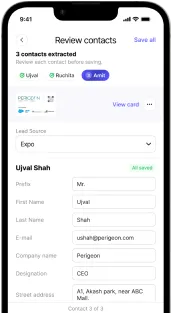
Unusual fonts, logos that look like letters, or text printed over images can still trip up any OCR. PeriScan shows every extracted field before saving — check the name, email and phone at a minimum. If a capture is poor, retake it; it’s faster than fixing every field.
Double-sided cards
If important details are on the back, scan both sides so nothing is missed.
With good light and a steady hand, most cards need no corrections at all — and the ones that do take seconds to fix.