
Resources
Blogs
Insights, tips, and updates on smarter networking, digital business cards, and seamless contact management.
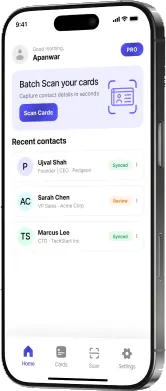
What’s New in PeriScan: Smarter, Faster, Better Networking
Explore the latest PeriScan features and improvements designed to make scanning, saving, and managing business contacts faster and easier.
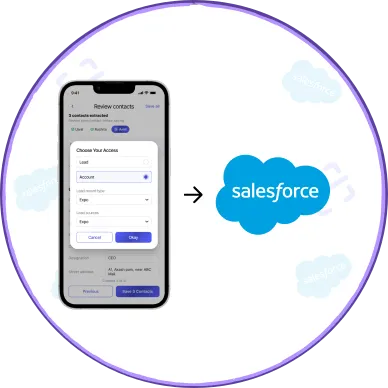
How to Get Business Cards into Salesforce Without Manual Entry
A practical walkthrough of moving contacts from paper cards to Salesforce Leads, Accounts and Contacts — accurately, and without retyping a thing.
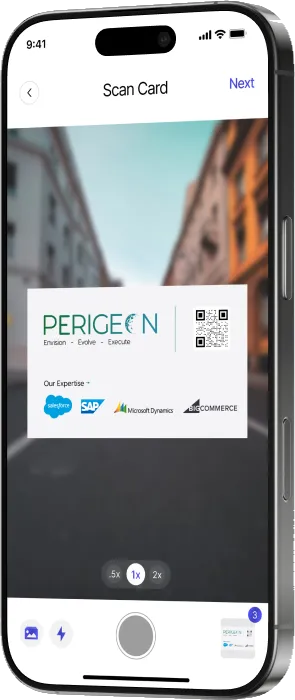
Trade Show Lead Capture: A Checklist for Event Teams
Before, during and after the event — a simple checklist to make sure every conversation at your booth turns into a usable lead.
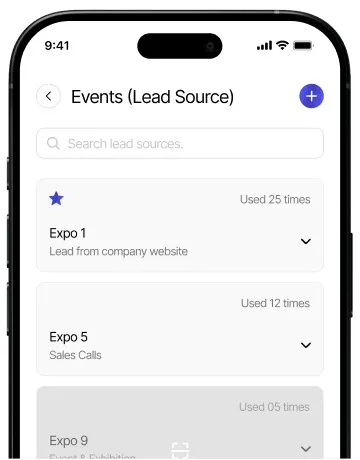
Why Tagging Every Contact by Lead Source Pays Off
Knowing where a contact came from shapes how you follow up and which events you invest in. Here's how to make lead-source tagging a habit.
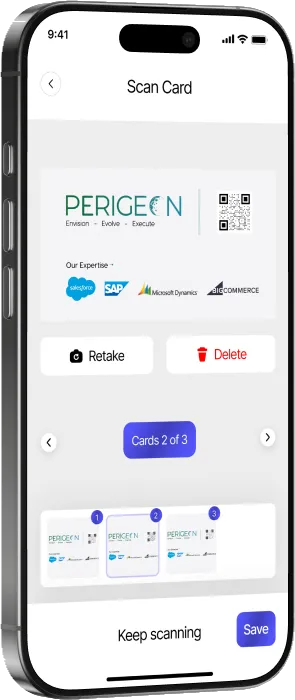
Batch Scanning: Capture a Stack of Business Cards in Minutes
Came back from an event with a pile of cards? Here's how to use PeriScan's batch mode to scan them all quickly and review them in one pass.
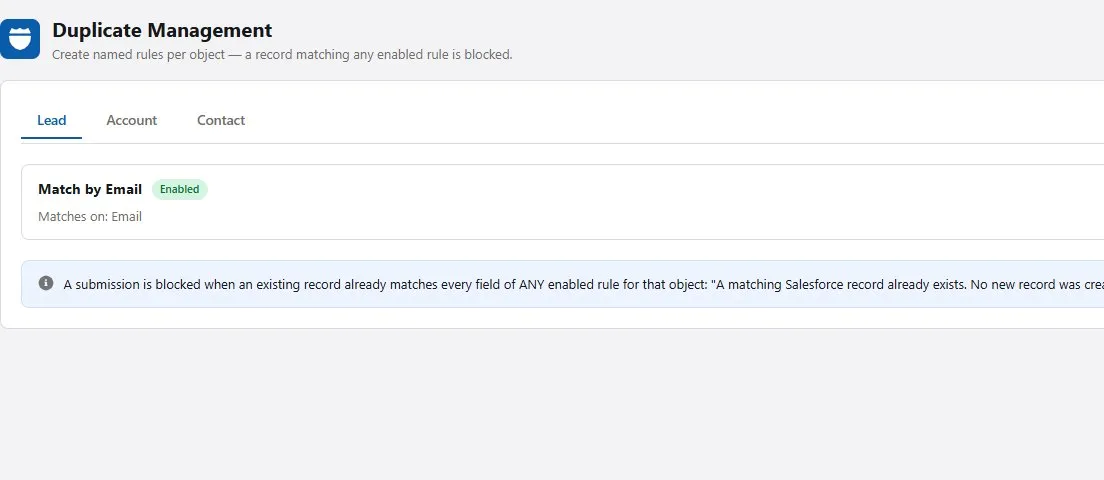
Stop Duplicate Leads from Scanned Business Cards
The same card gets scanned twice more often than you'd think. Here's how to design duplicate rules that keep your Salesforce org clean.
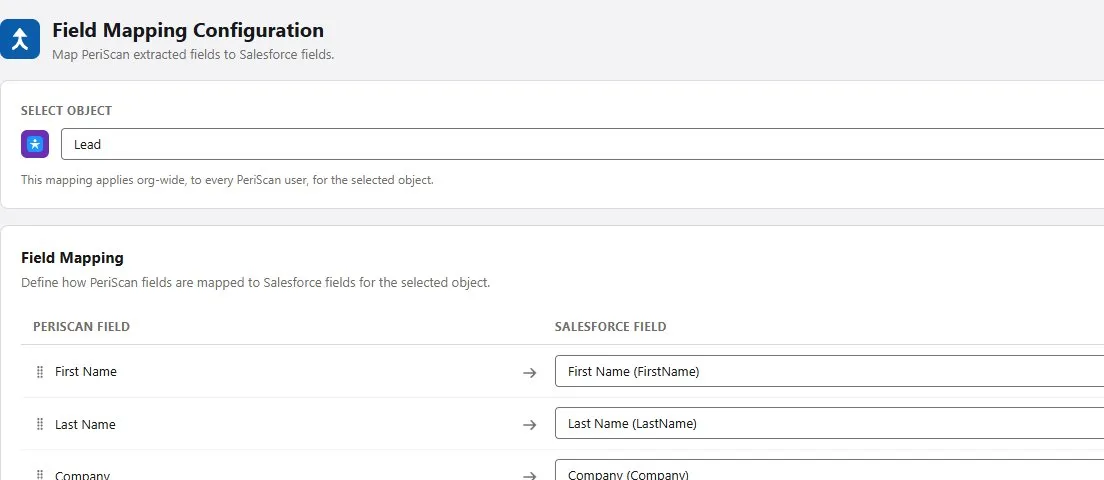
Mapping Business Card Data to Custom Salesforce Fields
Your org has its own data model. Here's how to plan field mappings so every scanned card lands in exactly the right Salesforce fields.
The 48-Hour Follow-Up: Turning New Contacts into Conversations
The value of a new connection fades fast. A simple routine for following up within two days — while they still remember you.
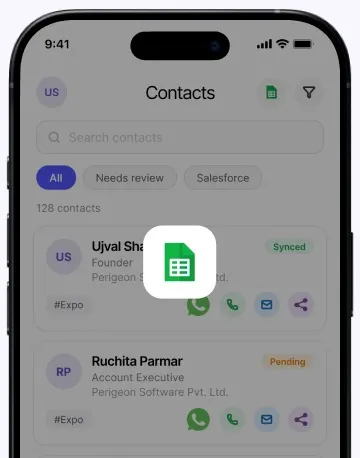
Exporting Your Business Card Contacts to Excel
When and why to export scanned contacts to a spreadsheet, and how to keep the data tidy once it's there.
7 Tips for More Accurate Business Card Scans
Lighting, angle, card design and a quick review — small habits that make AI-powered card scanning noticeably more accurate.
No articles match your search or filter.
Ready to make networking smarter?
Scan business cards, organize contacts, and keep your connections accessible wherever business takes you.
FAQ
Frequently asked questions
What is PeriScan and what does it do?
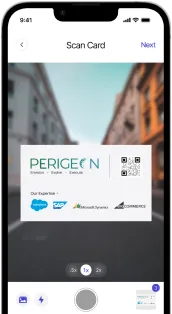
PeriScan is a smart business card scanner app available on iOS and Android. It uses advanced OCR (Optical Character Recognition) technology to instantly capture contact details from any business card — including name, phone number, email, job title, and company. Scanned contacts can be synced straight to Salesforce, exported to Microsoft Excel, or saved to your phone's address book, eliminating manual data entry completely.
Is PeriScan free to download?
Yes. PeriScan is free to download on Google Play and the App Store, and the Free plan includes 20 lifetime card scans on one device. Upgrade to Pro or Elite for monthly scan allowances and more devices, or add an extra scan pack whenever you need one.
Which platforms and devices is PeriScan available on?
PeriScan runs on iPhone and Android phones. Teams using Salesforce can also install PeriScan from the Salesforce AppExchange, which adds an admin console inside Salesforce for licenses, object access, field mapping and duplicate rules.
How do I scan a business card into Salesforce?
Your Salesforce admin installs the PeriScan app from the AppExchange in your org. Then, on your phone, sign in to PeriScan with Salesforce SSO, scan the business card, select Lead, Account or Contact and its record type, and submit. The record is created in Salesforce, and PeriScan checks your duplicate rules first.
Can I create a Salesforce Lead from a business card?
Yes. Scan the business card (also called a visiting card) in the PeriScan app, select Lead and its record type, and submit — PeriScan creates the Lead in Salesforce after checking your duplicate rules.
Can PeriScan scan multiple business cards at once?
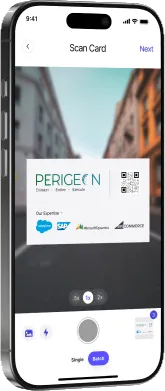
Yes. Switch to Batch mode and keep scanning card after card — PeriScan queues them, extracts the details from each one, and lets you review every contact before you save them all in one go.
How accurate is PeriScan's card scanning?
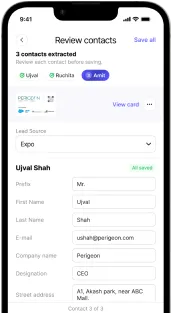
PeriScan's AI-powered OCR reads names, titles, companies, emails, phone numbers and addresses from a wide range of card layouts. Results depend on print quality, lighting and design, so every scan lands on a review screen first — you can correct a field, retake the photo, or save it as-is.
Can I scan now and process the cards later?
Yes. Scan cards at the booth or meeting and save them straight away, then review and push them to Salesforce when you’re ready.
What CRMs and tools does PeriScan integrate with?
PeriScan syncs directly to Salesforce as Leads, Accounts or Contacts, with field mapping and duplicate detection set by your admin. You can also export your contacts to Excel or save them to your phone's address book.