Exporting Your Business Card Contacts to Excel
When and why to export scanned contacts to a spreadsheet, and how to keep the data tidy once it's there.
PeriScan Team 2 min read
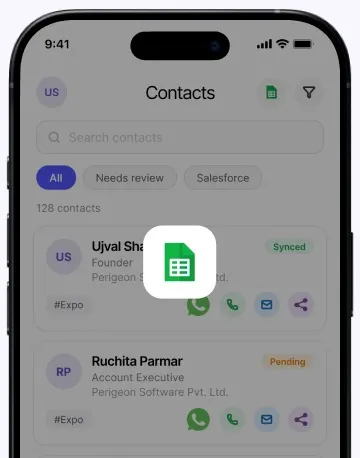
Not every workflow starts in a CRM. Sometimes you need your contacts in a spreadsheet — to hand over to a colleague, import into an email tool, or simply keep a record of an event. PeriScan exports your contact list to Excel in a couple of taps.
Common reasons to export
- Event hand-offs. Share the list of booth visitors with marketing for a follow-up campaign.
- Imports into other tools. Many email and CRM platforms accept spreadsheet imports.
- Event archives. Keep a record of who you met at each event.
- Quick analysis. Sort and filter by company, title or lead source.
How to export
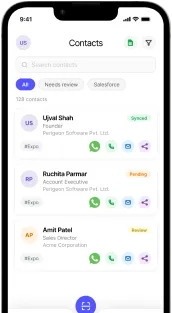
- Open your Contacts list in PeriScan.
- Use search or filters to narrow down the contacts you need — for example, everything from one event.
- Tap the Excel icon to export.
- Share the file by email, cloud storage or any app on your phone.
Keep the spreadsheet tidy
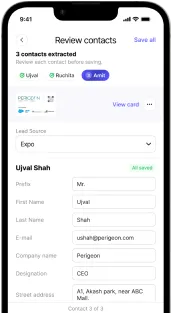
- Review before exporting. Fix any misread fields in PeriScan first, so you only clean the data once.
- Keep lead sources consistent. They become a handy column to filter by.
- Treat it as personal data. Contact details are personal information. Share exports only with people who need them, store them securely, and delete copies you no longer need.
Excel or Salesforce?
If your team works in Salesforce, syncing directly is usually better — records get your field mappings and duplicate checks automatically. Excel export shines for one-off hand-offs and teams that don’t use a CRM.